
How to Activate Microsoft Office for Free
If you’re looking for a way to download and activate Microsoft Office 365 apps like Word and Excel for free, you’re in the right place. In this guide, we will walk you through the entire process step-by-step.
Customize Your Office Installation
First, open the Office Customization Tool.
- Select the 64-bit Version: Ensure you choose the 64-bit version for better performance and compatibility.
- Choose Your Product: Under products, select “Microsoft 365 Apps for Enterprise.” The main difference between Office 365 and Office 2021 is that Office 365 receives feature updates, while Office 2021 does not.
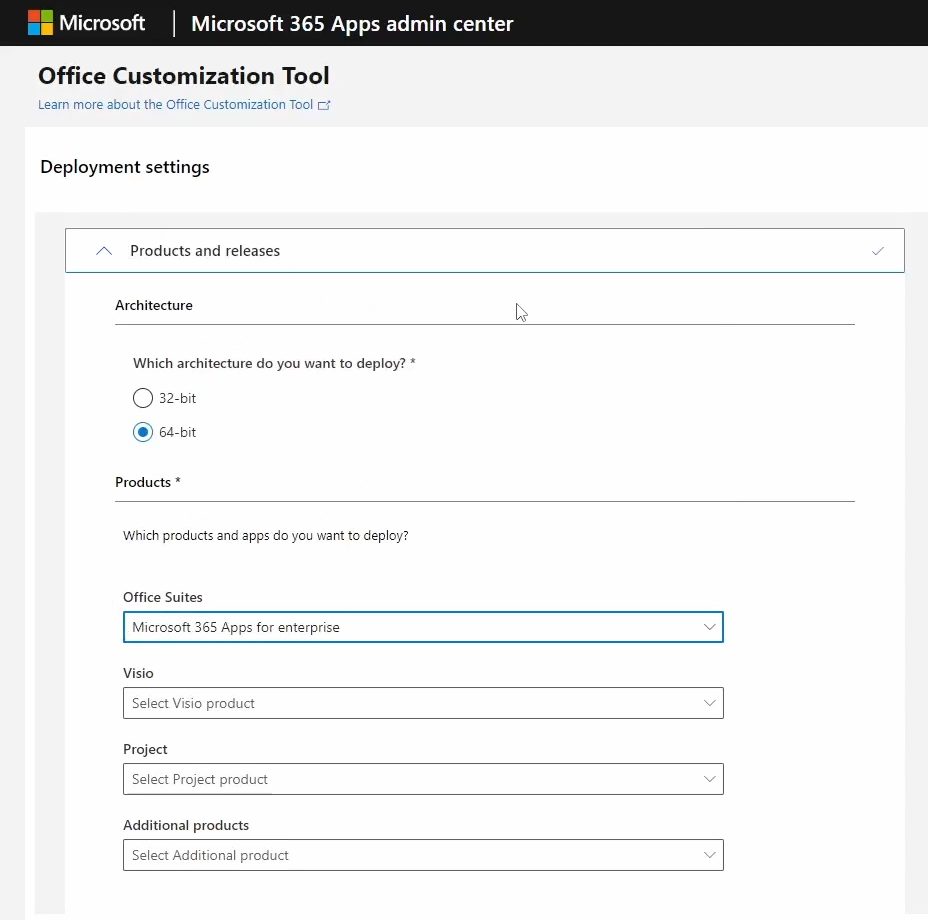
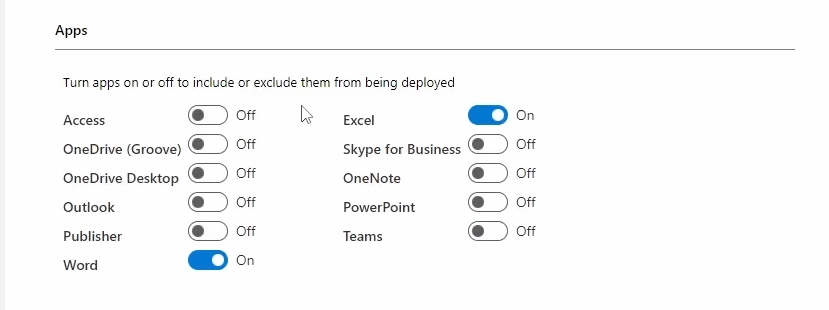
- Select Your Apps: Scroll down to the apps section and choose the programs you want to install, like Word or Excel
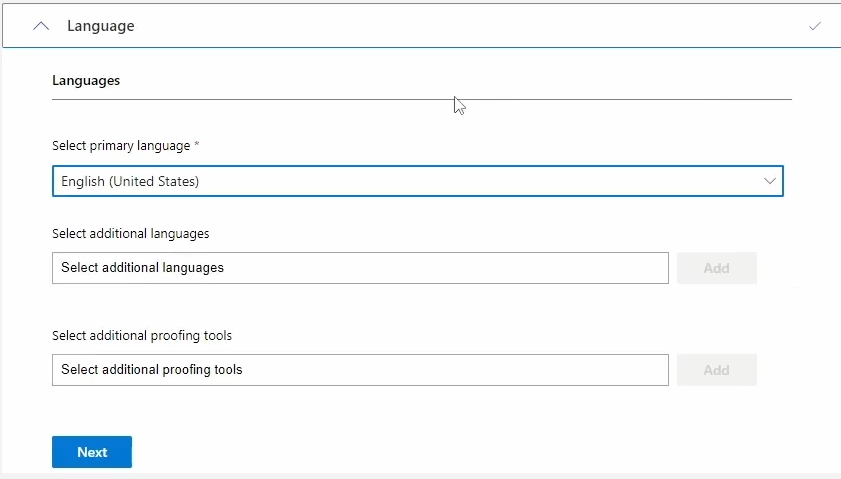
- Set Your Language: Go to the language section and choose your preferred language. You can add additional languages if needed.
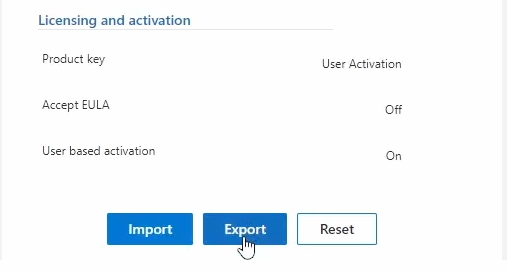
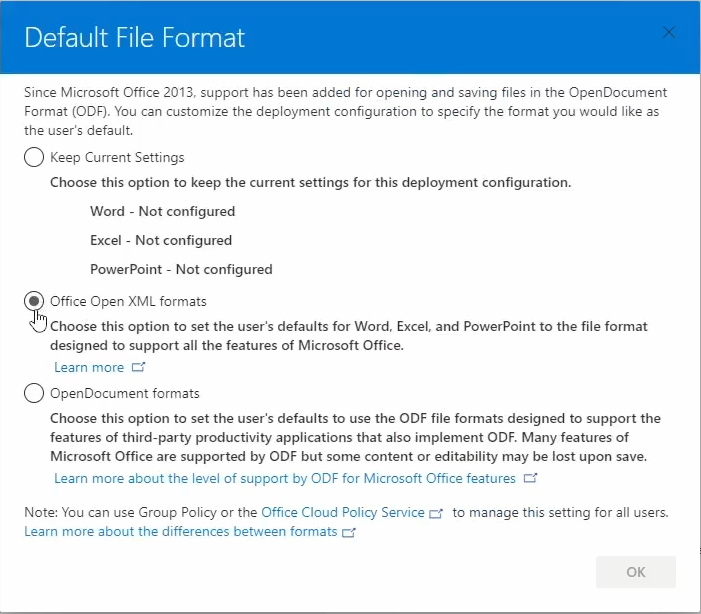
- Export the Configuration: Scroll down and click the Export button on the right. Select “XML Format” and click OK. Accept the terms and export the configuration file.
Download Microsoft Office
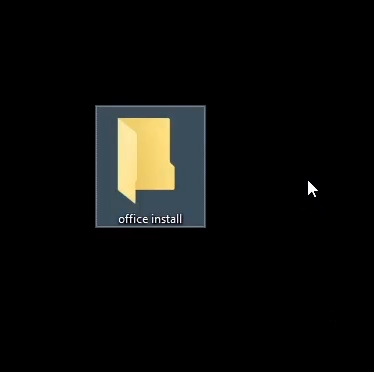
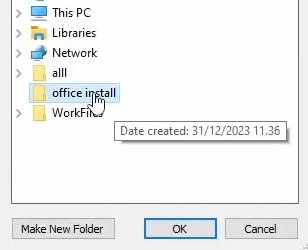
- Create an Installation Folder: Go to your desktop and create a new folder named “Office Install.” Move the downloaded configuration file into this folder.
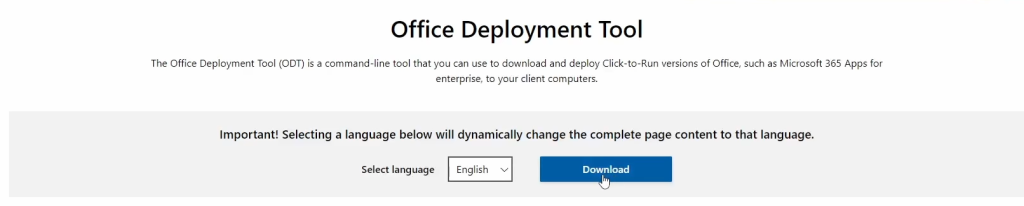
- Download the Office Deployment Tool: Download and run the tool, selecting your “Office Install” folder during the setup.
Install Microsoft Office
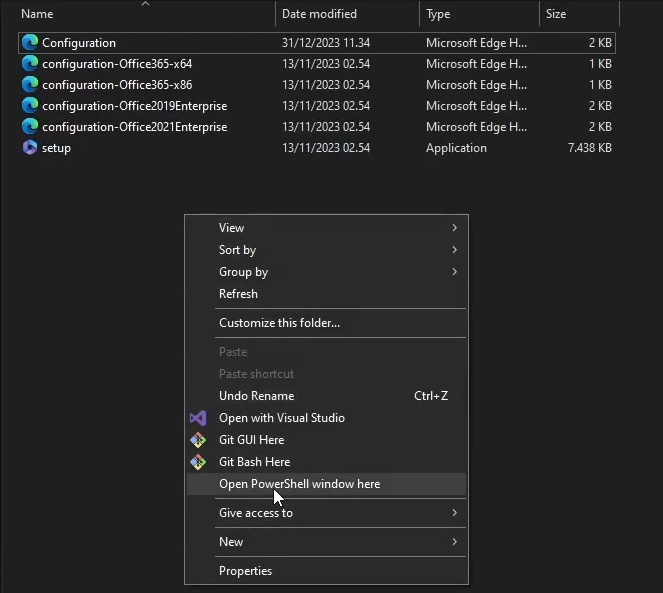
- Open PowerShell or Terminal: Open the “Office Install” folder, hold the Shift key and right-click in the folder. Click “Open PowerShell window here” (or Terminal if you are using Windows 11).
- Run the Installation Command: Paste the following command into the PowerShell window and hit enter:
./setup.exe /configure configuration.xml
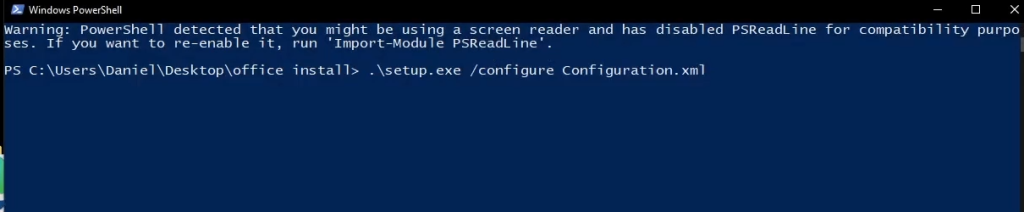
- Office will now install but is not activated yet
Activate Microsoft Office for Free
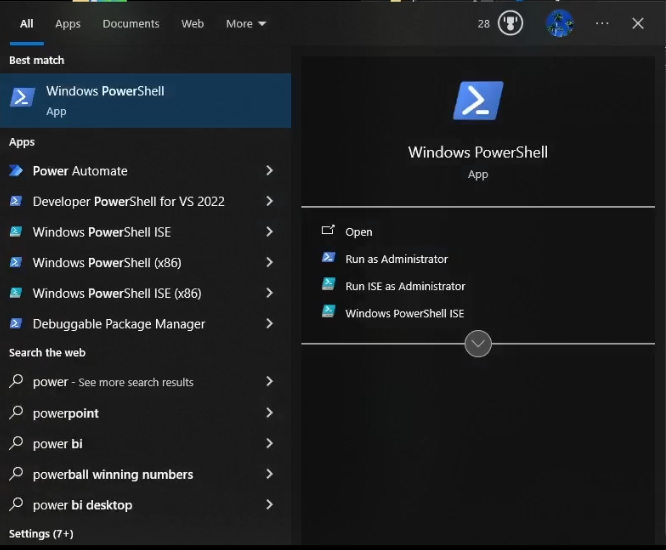
- Close the PowerShell or Terminal window : When Reopen the PowerShell but from the start menu.
- Run the Activation Script: Enter the following command to install the Microsoft activation
irm https://massgrave.dev/get | iex
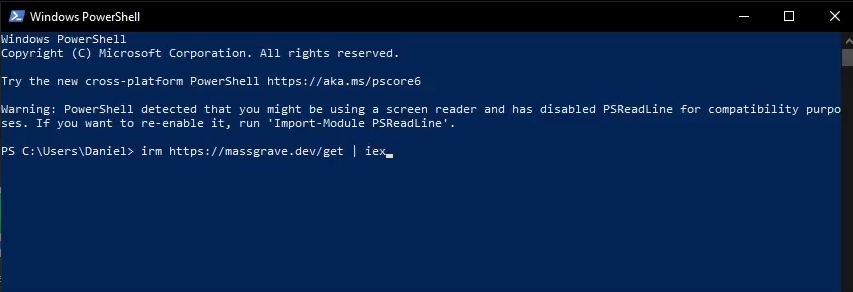
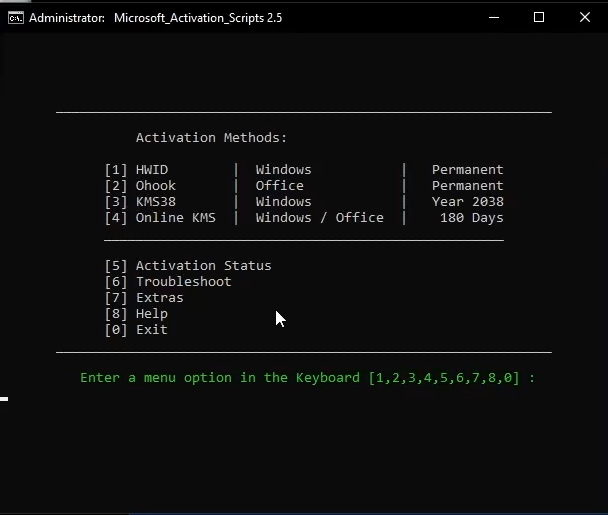
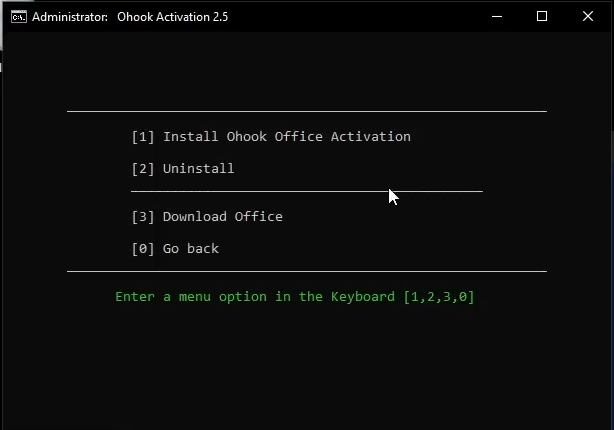
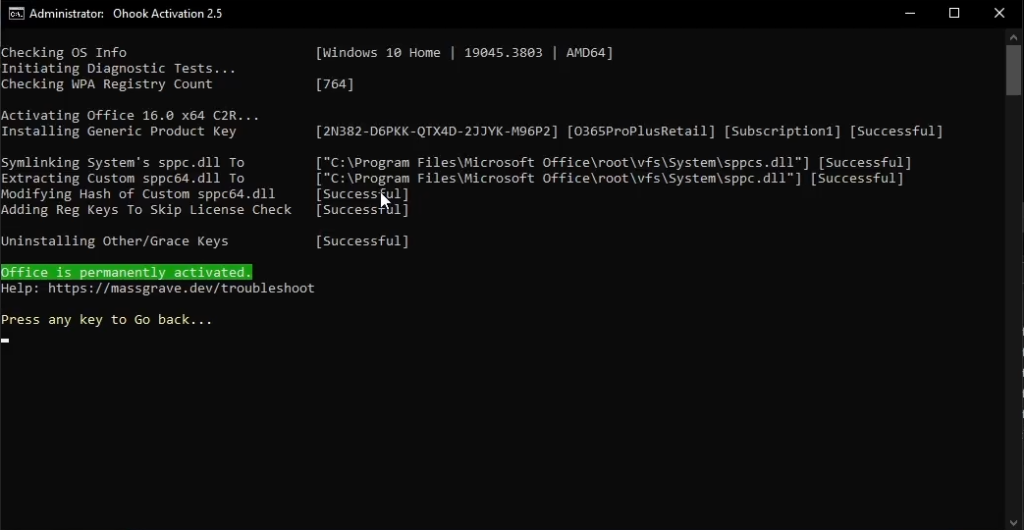
- Follow the On-Screen Instructions: A window will pop up. Press “2” on your keyboard, then press “1” to start the activation process. Wait for it to complete.
Conclusion
Congratulations! You’ve successfully downloaded and activated Microsoft Office 365 apps like Word and Excel for free.
If you found this guide helpful, you might like our post on how to get Spotify Premium at a lower cost.